This article contains affiliate links. As an Amazon Associate I earn from qualifying purchases.
Sooner or later, running image generators or local LLMs hits the limits of the GPU in your own computer. One way around that is a rented GPU: a card in a data center that you pay for by the hour. An RTX 4090 starts at about 34 cents an hour.
Picking a service by its hourly rate alone can still cost more than expected. On some services, the storage holding your data keeps billing after the GPU is switched off. This article looks at the main services’ rates, and at what you keep paying for while the GPU sits idle, using figures from each provider’s own pricing pages as of November 23, 2026.
What a rented GPU is for
A GPU rental service gives you a computer with a GPU in a data center, which you use over the internet. When you start one, a Linux server boots up, and you work in it through a browser interface such as Jupyter or ComfyUI, or over SSH. You pay only for the time you use, and the main overseas services bill by the second.
It suits work that is too heavy for the GPU at home: generating hundreds of images with a large model, trying an LLM that needs tens of gigabytes of memory, or fine-tuning a model on your own data. It makes the most sense when you need a strong GPU for a few hours or a few days.
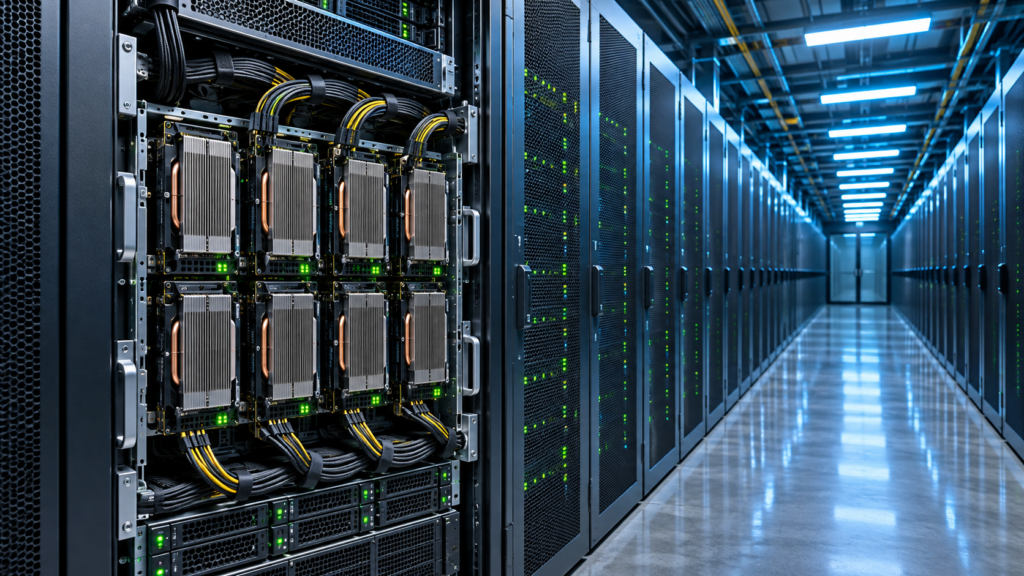
You can rent as little as one GPU from a server like the one above. Your own computer only sends commands, so a laptop is enough.
Hourly rates
Among individual users, RunPod and Vast.ai are two of the most common choices. RunPod offers two kinds of machines: Community Cloud, where individuals and small operators rent out their GPUs, and Secure Cloud, which runs in data centers RunPod partners with. Its hourly rates are:
- RTX 4090 (24 GB): Community $0.34, Secure $0.89
- RTX 5090 (32 GB): Community $0.69, Secure $1.39
- A100 80 GB (PCIe): Community $1.19, Secure $2.09
- H100 80 GB (PCIe): Community $1.99, Secure $2.89
Vast.ai works as a marketplace where GPU owners list their machines at prices they set. The same RTX 4090 costs a different amount from one listing to the next. Its Interruptible tier, where your machine can be reclaimed mid-job, is described as more than 50% cheaper than on-demand.
Google Colab also gives you a GPU from the browser. It has a free tier, but its FAQ says free notebooks run for at most 12 hours, time out when idle, and that the GPUs available are not guaranteed. Paid plans sell GPU time as “compute units.” Rather than renting a whole server, Colab suits running a notebook for a set stretch of time.
Start with GPU memory
When choosing a GPU, check whether its memory (VRAM) is enough before worrying about speed. If a model does not fit in memory, even a fast GPU either cannot run it or runs it extremely slowly.
Stable Diffusion-style image models, and quantized LLMs in the 7 to 14 billion parameter range, fit on a 24 GB RTX 4090. For larger LLMs or video generation models, the candidates are the 32 GB RTX 5090 or the 80 GB A100 and H100. If you have already tried a model on your own computer, the amount of memory you ran short on tells you what to rent.
Among GPUs with the same memory, try the cheapest one first and move up only if it is too slow. With per-second billing, testing a card for five minutes and switching costs you five minutes.
What keeps billing after you stop
Bills for rented GPUs usually grow during the hours the GPU is not working. Stopping the GPU when you are done does not stop the charge for the disk that holds your outputs and downloaded models. Where that data lives, and what it costs, differs a lot between services.
RunPod has three kinds of disk:
- Container disk: erased when the pod stops, and free while stopped
- Volume disk: kept when the pod stops. $0.10 per GB per month while running, $0.20 while stopped
- Network volume: storage kept apart from the server. $0.07 per GB per month under 1 TB, whether running or stopped
The volume disk costs twice as much per gigabyte while the pod is stopped. Leaving 100 GB on a stopped pod for a month costs $20, the same as running a Community Cloud RTX 4090 for about 59 hours. A few image models fill 100 GB quickly, so “I’ll just stop it, since I use it now and then” often turns out to be the most expensive way to use the service.
Vast.ai’s billing page also states that stopping an instance does not avoid storage costs. On top of that, bandwidth is charged for every byte sent or received, at a rate each host sets, so downloading large models again and again adds up. RunPod does not charge for data ingress or egress.
On RunPod, the way around the doubled rate is the network volume. Keeping 100 GB there costs $7 a month whether a pod is running or not, about a third of what the same data costs on a stopped pod’s volume disk. If you use a GPU only on scattered days, deleting the pod after each session and keeping your files on a network volume, or downloading them, usually costs less than leaving a stopped pod waiting.
It is also worth knowing what happens when your balance runs out. RunPod stops pods automatically when the balance reaches $0; pods without a network volume are terminated, and their data cannot be recovered. Vast.ai also stops instances when credit runs out, and without a saved card, instances and their stored data are destroyed. Topping up a small amount and forgetting about it can wipe out work in progress.
Renting versus buying
To compare renting with buying a computer with a GPU, work out how many hours of rental would add up to the purchase price. Suppose an RTX 4090 PC costs $2,700. At the Community Cloud rate of $0.34 an hour, that is about 7,900 hours; at the Secure Cloud rate of $0.89, about 3,000 hours.
For someone who uses a GPU two hours a day, 7,900 hours is more than ten years, and even 3,000 hours is about four. That calculation also leaves out the electricity the home PC would use. Unless you run a GPU for long hours every day, or want to keep your data on your own machine, renting usually comes out cheaper.
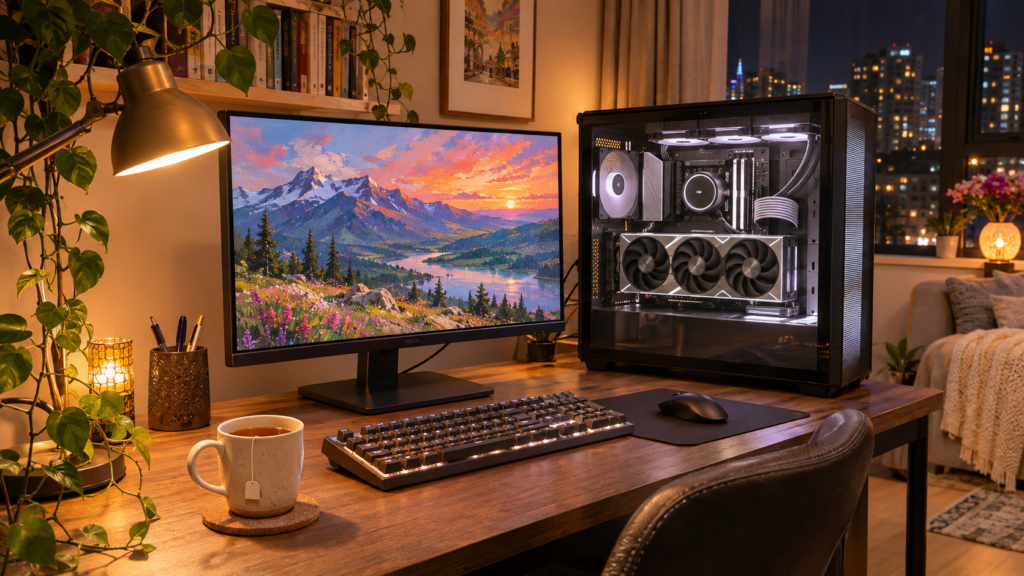
On the other hand, if you generate images for hours every day, or need to work without an internet connection, a GPU of your own is the better fit. Installing a used data center GPU in a home PC is another way to get there.
Your first rental, step by step
Going in this order makes billing surprises less likely the first time:
- Start with a small top-up. RunPod will not start a pod unless your balance covers at least one hour of the chosen configuration
- Begin on a cheap GPU and check that the template you want (for example, one with ComfyUI preinstalled) actually works
- Keep anything you want to save on a network volume, or download it to your own computer at the end of the session
- When you finish, delete the pod rather than just stopping it, and check how your balance has moved the next day
RunPod sets a default spending limit of $80 an hour across all resources. Even so, a pod you forgot to shut down keeps billing by the second, and only you can confirm that it has actually been deleted.
If the lowest hourly rate matters most, look at RunPod’s Community Cloud or Vast.ai’s interruptible offers; if a job being cut off would cost you more than the savings, pay extra for Secure Cloud or on-demand machines. While your usage is still unclear, rent a few dollars’ worth first and time how long one job takes. That shows which kind of service fits.
Related products
You can find books and products related to this article on Amazon.
If you buy through the links above, this blog may earn a commission.
About the images
The images in this article are illustrations created with AI (ChatGPT), and you are welcome to use them. If you do, we would appreciate a link back to this article as the source.


コメント